EU9 offers a native mobile app for both operating systems: an iOS App available through the Apple download link on the EU9 download page, and an Android APK available as a direct download from the same page. Unlike many Malaysian online casinos that rely on browser shortcuts or PWA installs, EU9’s app is a genuine native application – it installs on your phone like any other app and runs without a browser.
This guide covers the download and installation process for both iOS and Android, what the app includes, and how it compares to the browser version.
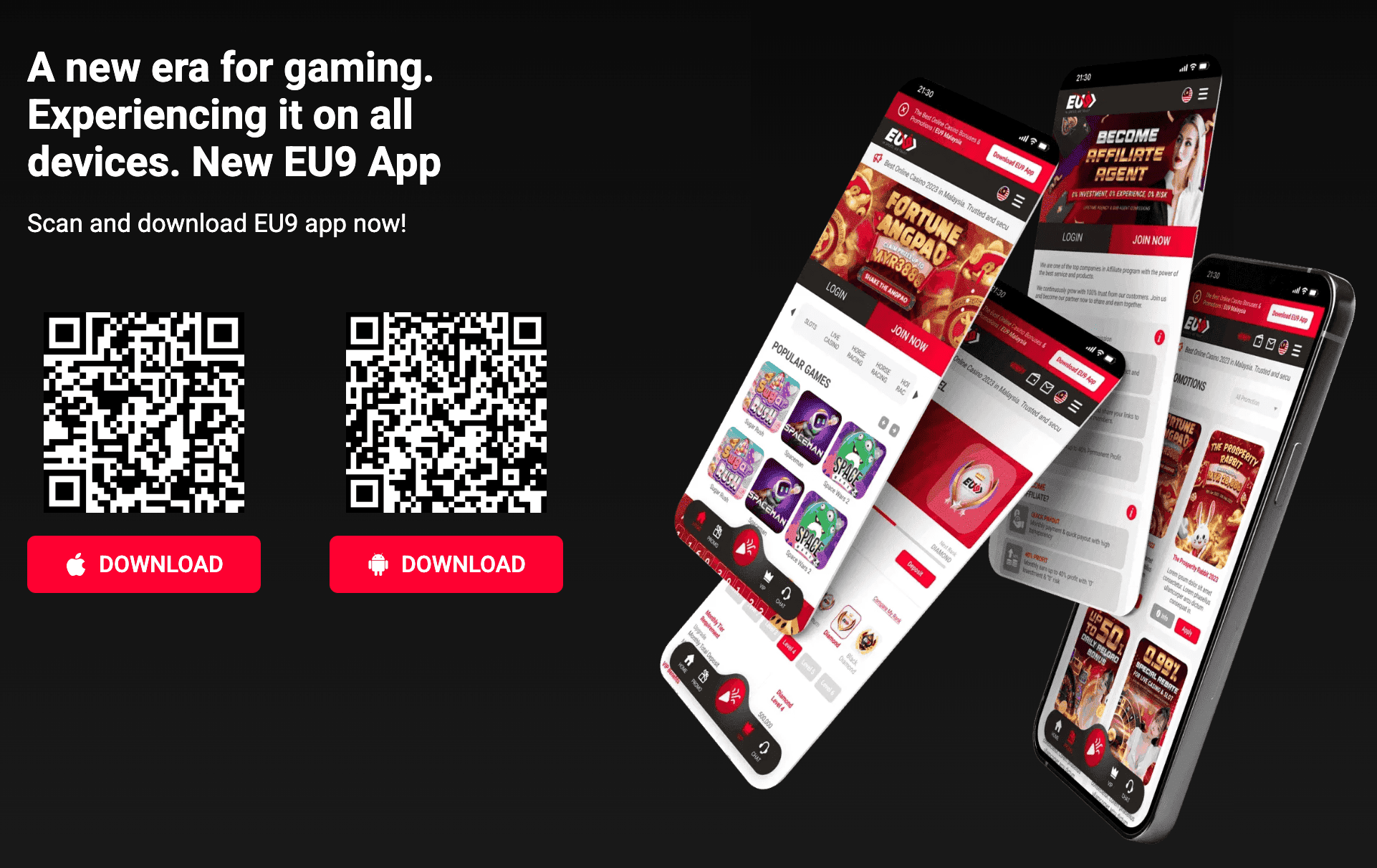
The EU9 Android APK is not distributed through Google Play. It is a direct APK download from the official EU9 download page. This means the standard Android security setting that blocks ‘Unknown sources’ will need to be temporarily enabled for the install to complete.
After installation is confirmed, you can turn the ‘Install Unknown Apps’ permission back off in Settings. The EU9 app will continue to function normally after revoking the permission – it only needs to be enabled during the installation step.
Because the APK is not on Google Play, there are no automatic updates. When EU9 releases an updated version, a notification typically appears within the app itself. To update: download the new APK from the EU9 download page and install it over the existing app. Your account data and history are stored server-side – installing an update does not reset your account.
The EU9 iOS App downloads via a direct link from the EU9 download page. The iOS App may be distributed through Apple’s standard App Store or via a TestFlight/enterprise link – the current delivery method is confirmed on the download page. Tap the iOS download button on eu-9.games/app and follow the prompts.
iOS restricts the installation of apps outside the App Store more tightly than Android. If the direct download route is used, the Trust Developer step is required and is a standard iOS procedure – it does not indicate that the app is unsafe.
The EU9 native app gives access to the full platform – every feature available on the desktop browser is accessible through the app:
The native app typically outperforms the browser version on mobile for two reasons: assets are cached locally after the first install rather than re-downloading on each visit, and the app interface is optimised for touch navigation rather than adapting a desktop layout.
The most common cause is the ‘Unknown Sources’ permission being off. Go to Settings – Apps – Special App Access – Install Unknown Apps, find the browser or file manager you used to open the APK, and enable ‘Allow from this source’. If the APK still won’t install, check that your device has at least 100MB of free storage and that you’re running Android 6.0 or above.
If the app closes immediately on launch, the developer trust step may not have been completed. Go to Settings – General – VPN & Device Management, find the EU9 developer profile, and tap Trust. The app will launch normally after this step.
Force close the app and reopen. If specific game categories don’t load, check whether your connection is active – the app requires a live internet connection, there is no offline mode. If the issue persists after reconnecting, clear the app cache: Android: Settings – Apps – EU9 – Clear Cache. iOS: delete and reinstall the app (your account data is server-side and will not be lost).
If the download link at eu-9.games/app isn’t loading, the domain may be blocked on your ISP. Switch to mobile data and try again, or access the download page directly from the EU9 Telegram bot at t.me/eu_myr_bot where the current working download links are posted.
Registration: EU9 login and register guide | Bonuses: EU9 promotions